Competitor Tracking in Salesforce: Setup Guide

Salesforce has a built-in "Main Competitor(s)" field on Opportunities. It's free text, which means one rep types "Acme," another types "Acme Inc.," and a third types "acme industries." Your data is useless for reporting before it starts.
Here's how to set up structured competitor tracking that actually produces clean, actionable data.
Step 1: Create Custom Competitor Fields
Replace the default free-text field with structured fields on the Opportunity object:
- Competitor (Picklist): Restricted picklist of your known competitors. Use specific company names, not categories. Include "No Competitor / Greenfield" and "Unknown" as options.
- Competitor Strength (Text Area): Free text for reps to note what the competitor is doing well in this specific deal.
- Lost Reason (Picklist): Include competitor-specific options like "Chose Competitor — Lower Price" and "Chose Competitor — Better Feature Fit."
Creating the Competitor Picklist
- Setup → Object Manager → Opportunity → Fields & Relationships → New
- Select Picklist, label it "Competitor"
- Enter competitor names, one per line
- Check "Restrict picklist to the values defined in the value set"
- Set field-level security so sales profiles can edit
- Add to Opportunity page layouts
Hide the standard "Main Competitor(s)" text field from layouts to avoid confusion.
Step 2: Add Validation Rules
Fields only work if reps fill them in.
Rule 1: Require Competitor at mid-funnel. Trigger when the deal hits Proposal, Negotiation, or later:
ISPICKVAL(StageName, "Proposal/Price Quote") ||
ISPICKVAL(StageName, "Negotiation/Review") ||
ISPICKVAL(StageName, "Closed Won") ||
ISPICKVAL(StageName, "Closed Lost")
Rule 2: Require Lost Reason on Closed Lost:
ISPICKVAL(StageName, "Closed Lost") && ISPICKVAL(Lost_Reason__c, "")These two rules transform your competitive data quality overnight.
Step 3: Build Competitive Reports
Five reports that answer the questions leadership actually asks:
1. Opportunities by Competitor — Which competitors do you encounter most? Group by Competitor, filter by close date range.
2. Win/Loss by Competitor — Your win rate against each rival. Group by Competitor and Stage, add summary formulas for Win Rate (WON:SUM / CLOSED:SUM) and Loss Rate.
3. Loss Reasons by Competitor — Why you lose to specific competitors. Group by Competitor and Lost Reason, filter to Closed Lost.
4. Competitor Trends Over Time — Are competitive encounters shifting? Line chart with Close Date on X-axis, Record Count on Y-axis, grouped by Competitor.
5. Competitive Deal Size Analysis — Do certain competitors show up in SMB vs. enterprise? Group by Competitor, show Average Amount, Total Amount, Record Count.
Step 4: Build a Competitive Dashboard
Combine reports into a single dashboard:
- Horizontal bar chart: Opportunities by Competitor (volume)
- Stacked bar: Win/Loss by Competitor (win rate)
- Table: Loss Reasons by Competitor (detail)
- Line chart: Competitor Trends Over Time (direction)
Name it "Competitive Intelligence Dashboard," put it in a shared Sales folder, and link it from your team's Slack channel.
Step 5: Drive Adoption
The setup is easy. Getting reps to consistently fill in the fields is hard.
- Validation rules do the heavy lifting — don't rely on goodwill
- Backfill the top 50-100 recent opportunities so reports have data on day one
- Show value fast — present the dashboard in the first sales meeting after launch
- Executive sponsorship — have the VP of Sales announce the new fields and explain why they matter
- Pipeline review integration — make "who's the competitor?" a standard question for every deal
- Chatter group — create a "Competitive Intel" group where reps share what they hear on calls
Where Salesforce Competitor Tracking Falls Short
Salesforce is the right place to store competitive deal data. But it has inherent limits as a competitive intelligence system:
- It only captures what reps enter. Validation rules help, but they don't capture the nuance from conversations — why the prospect preferred them, what claims were made, what triggered the evaluation.
- It doesn't monitor the market. Salesforce tells you which competitors you ran into last quarter. It doesn't tell you Competitor X just raised prices or shipped a new feature.
- It doesn't connect changes to pipeline. When a competitor makes a move that affects your lost deals, there's no mechanism to surface that and alert the right rep.
Letterdrop extends your Salesforce competitive data into an active competitor monitoring and recovery system.
We ingest your deal data — which deals were lost, to which competitor, and why — then monitor for competitive signals: pricing changes, product issues, leadership changes, contract renewal windows, champion job changes.
When a signal matches a lost deal, the owning rep gets an alert with full context: deal history, loss reason, what just changed, and a suggested follow-up.
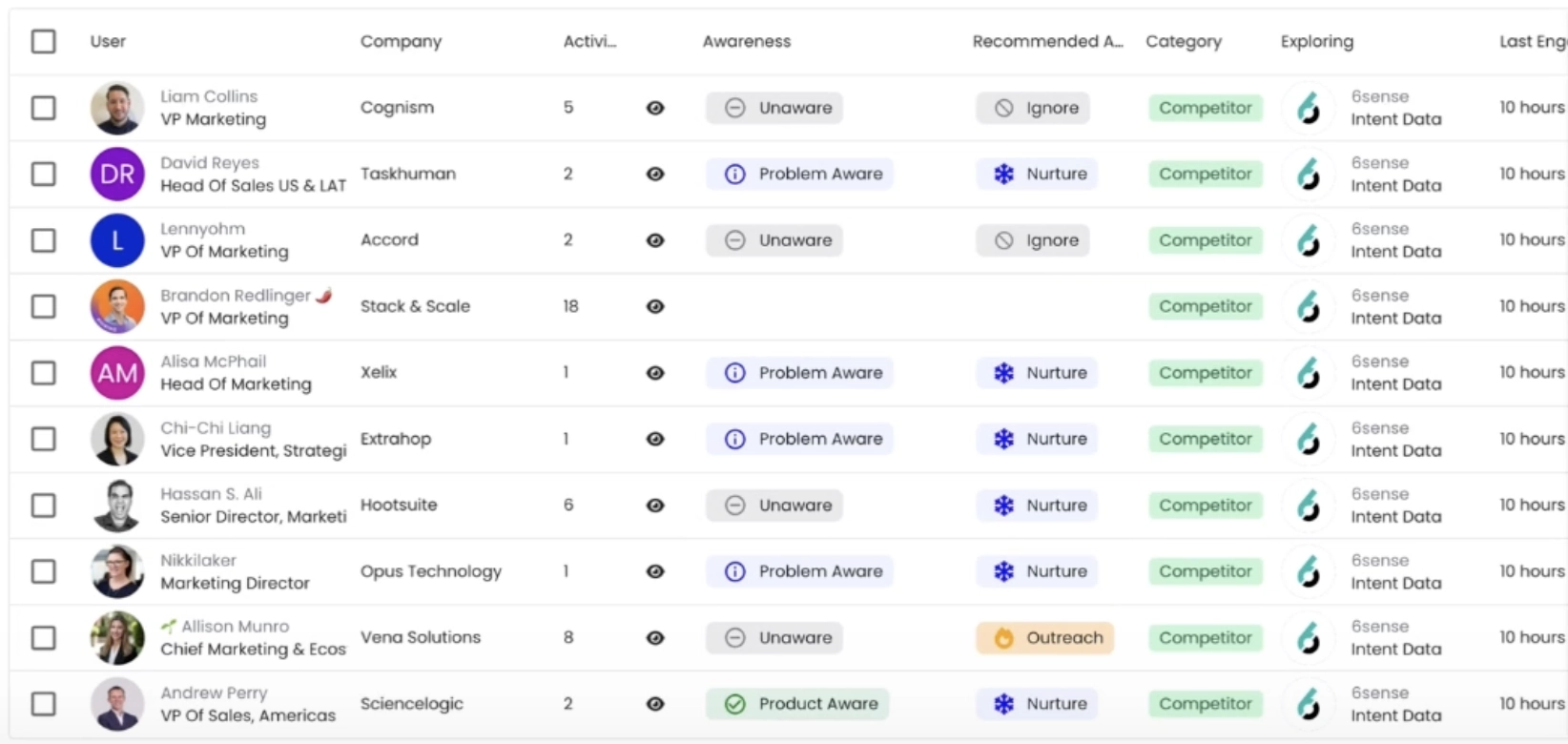
Competitor monitoring is automatic in Letterdrop
Subscribe to newsletter
No-BS GTM strategies to build more pipeline in your inbox every week
Related Reading
Some other posts you might find helpful